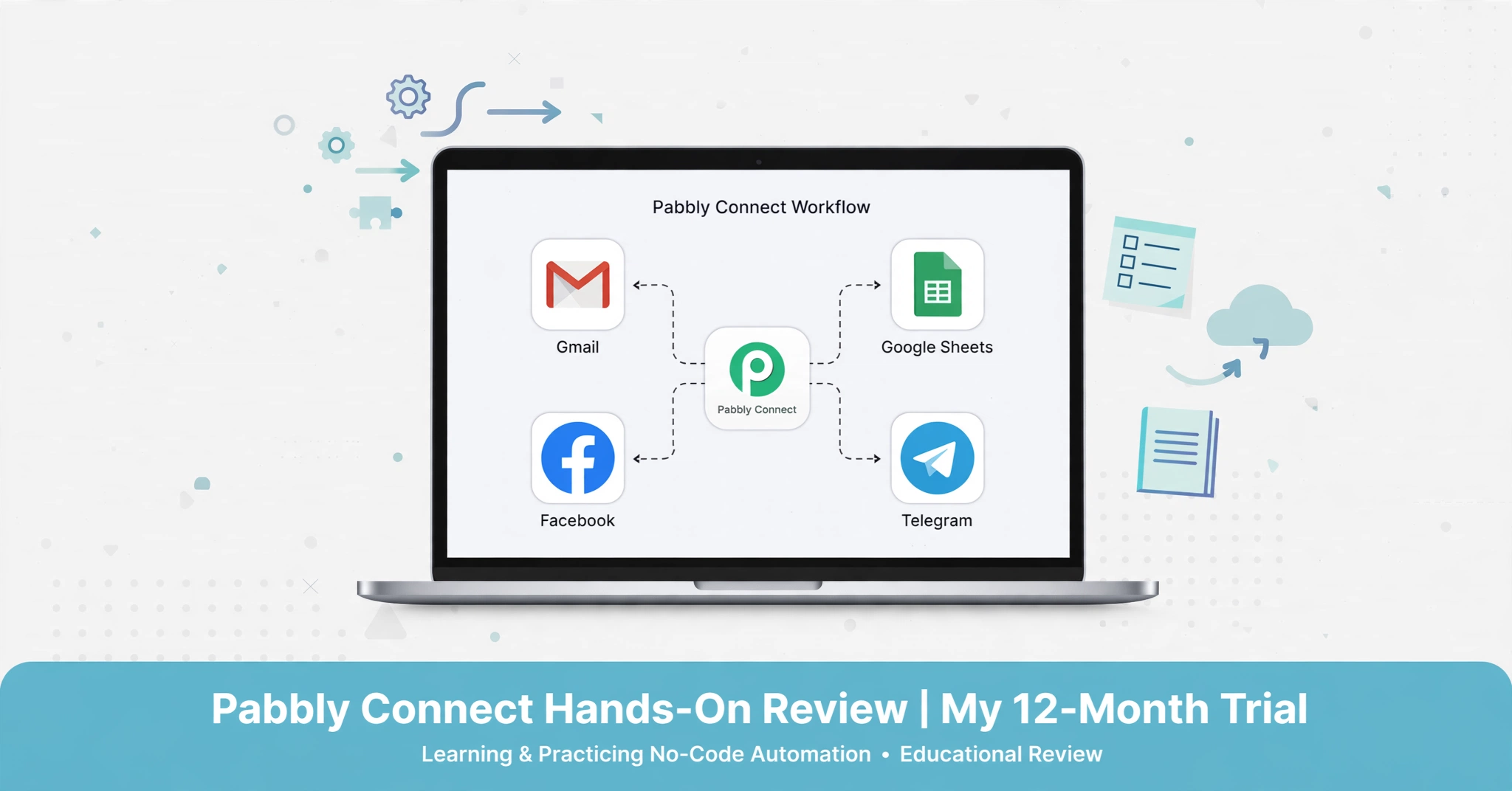
This is my honest pabbly connect lifetime deal review after 12 months of trial and practice for learning automation. I tested the one time payment plan as a tech enthusiast to understand how apps communicate.
Recently, I have turned my attention towards exploring automation tools. As someone who enjoys understanding how technology works behind the scenes, I found this field fascinating. These tools simplify several complex operations with just one workflow or logic.
Last year, I wanted to understand how apps actually communicate with each other, extract data, and perform operations automatically. How does a Facebook form entry automatically go to Google Sheets? How does a WordPress contact form send a WhatsApp message instantly? How does a new YouTube video get shared automatically on other platforms?
Many people in tech forums suggested that I should use Zapier. I tried Zapier’s free plan. It worked perfectly, but the task limits were too low for proper practice. With only 100 tasks per month on the free plan, I could not experiment freely. I needed more room to test, fail, and rebuild without worrying about monthly bills or task limits.
That’s when I found Pabbly Connect’s One Time Payment Plan. One payment gives lifetime access to practice and experiment as much as I want. No monthly renewal, no task-count anxiety. Here is my honest, hands-on pabbly connect lifetime deal review after 12 months of testing different automation workflows purely as a tech enthusiast.
Check Pabbly Connect Lifetime Deal Here.
Disclosure: This article is based on my personal trial and learning for educational purpose. It contains an affiliate link. If you purchase through my link, I may earn a small commission at no extra cost to you, which helps me test more tools for TechDiggersBlog.
What is Workflow Automation
Before talking about Pabbly, let me explain what I learned about workflow automation. In simple terms, workflow automation is connecting two or more apps to perform a task automatically without manual effort.
For example, manually copying Facebook leads to Google Sheets takes time. With automation, you set a rule once: “If new lead comes in Facebook, add row in Google Sheets.” After that, it happens automatically, 24/7.
This concept is called no-code automation because you don’t need to write code. You just select apps, connect them, and map data fields. This is what I wanted to practice.
What is Pabbly Connect
To start this pabbly connect lifetime deal review, let me explain what Pabbly Connect is in simple terms.
Pabbly Connect is a connector cable for apps. It is an automation tool developed by Pabbly, an Indian company based in Indore, founded in 2018.
There are several apps like Facebook Lead Ads, Google Sheets, Gmail, Telegram, WordPress, YouTube, Blogger, and RSS feeds that don’t connect with each other by default. Pabbly Connect acts as a bridge and passes data from one app to another automatically using triggers and actions.
Trigger and Action Concept: Every workflow has a Trigger (when something happens) and an Action (what to do). For example, Trigger: New entry in Google Forms. Action: Add row in Google Sheets.
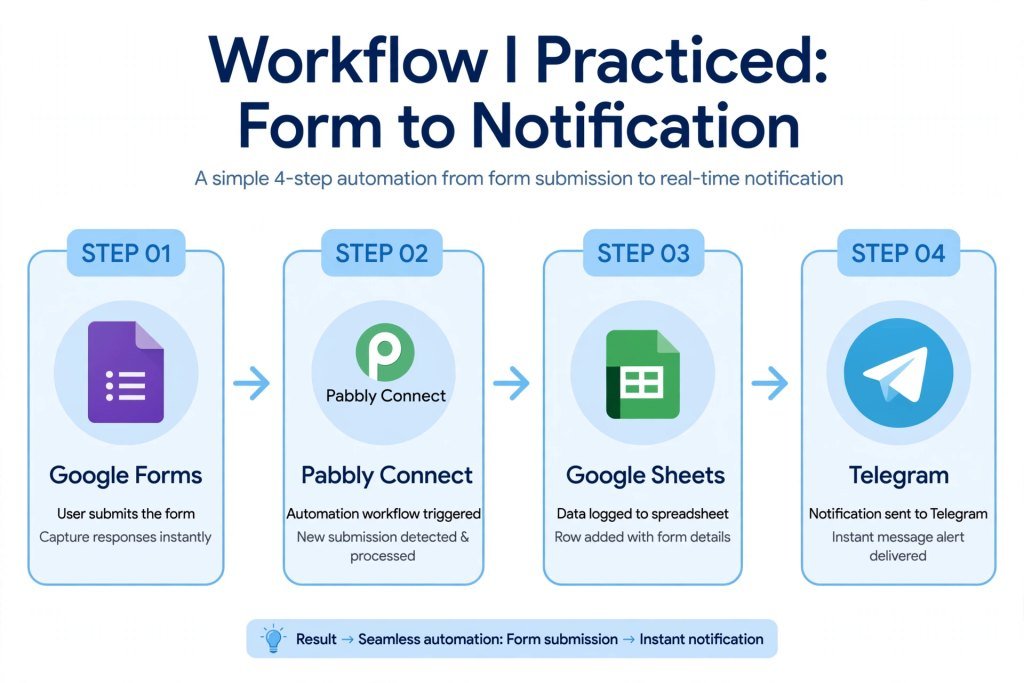
I tried one example for practice: I submitted a test entry in Google Forms → It created a row in Google Sheets → Sent me a Telegram message “New entry received” → Sent a welcome email via Gmail.
There was absolutely no coding. I only selected apps and mapped fields. Just drag and drop. This is why it is perfect for beginners who want to understand API and automation logic.
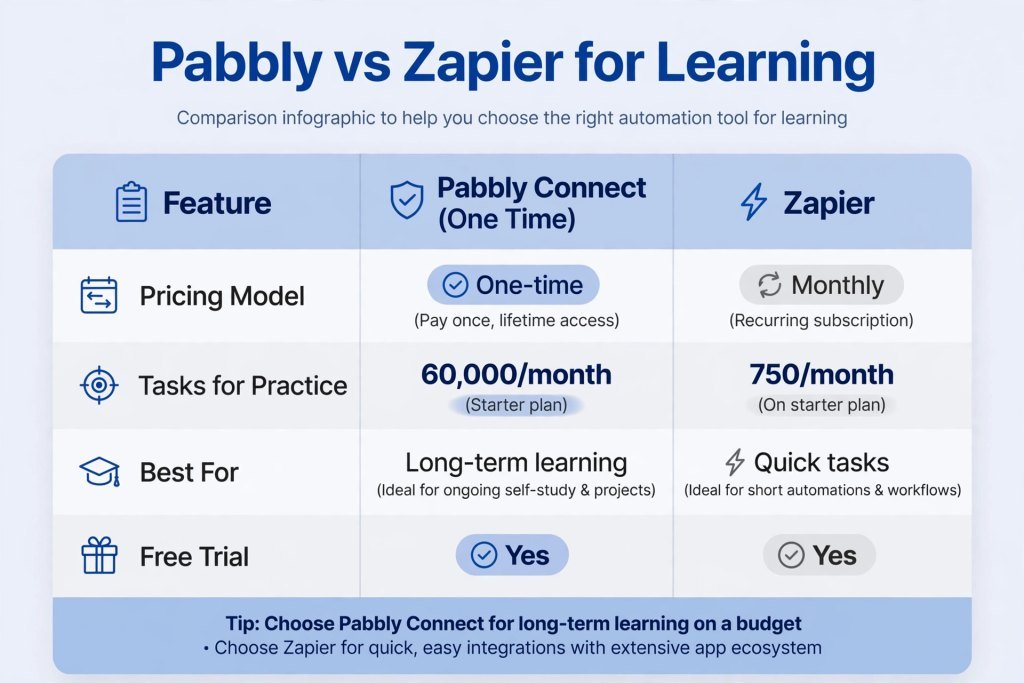
There are other tools like Zapier and Make.com that do the same job. The main difference I noticed is the pricing model. Zapier charges monthly based on tasks. Pabbly has this pabbly connect one time payment plan option for lifetime, which is better for someone who wants to practice long-term without recurring cost. This is the core reason I chose it for my pabbly connect lifetime deal review.
Why I Chose the Lifetime Deal for Practice
For trial and learning, monthly plans are distracting and expensive. Every month you think “Should I renew my subscription? I only tested 2 workflows this month.” That pressure stops you from learning freely.
With the one-time plan, I paid once and could experiment anytime – even if I take a 2-month break, no bill. There is no pressure to use it daily. This is the plan listed as Pabbly Connect (One Time Payment Plan) in their system. This is the one I tested for this review.
For a student, blogger, or someone learning automation on weekends, this model made more sense than paying a recurring fee every month to Zapier just to practice. The pabbly connect one time payment plan removes the financial anxiety from learning.
Another reason was data privacy. Since I was testing with dummy data and test accounts, I wanted a platform where I could keep my workflows saved for a long time without worrying about subscription expiry. With lifetime access, my 27 test workflows stayed intact even after I didn’t log in for 3 weeks.
What I Got in the Lifetime Plan
- Tasks: For this pabbly connect lifetime deal review, I tested the 60k tasks plan which is more than enough for practice. A task is one action execution. Example: Google Form to Google Sheets is 1 task. Form to Sheets + Telegram + Gmail is 3 tasks. Even with heavy testing (I created 20+ test workflows and ran each 10-15 times), I never crossed 8,000 tasks in a month. So 60k is more than enough for practice. For a beginner, even 10k tasks is huge.
- Workflows: Unlimited. I created 27 workflows in 12 months just to try different ideas. Some were successful, some failed – but I learned from each. Unlimited workflows mean you can create separate folders for learning: Social Media, Email, Sheets, etc.
- App Integrations: 1000+ apps including WordPress, Gmail, Google Sheets, Facebook Lead Ads (test leads), Telegram, YouTube, RSS feeds, Blogger, Mailchimp, Discord. I tested with 9 apps and all worked. The integration list grows every month.
- Learning Curve: Zapier is more polished with UI (10/10). Pabbly is around 7/10. It took me about 2 hours watching their official YouTube tutorials to get comfortable. After that, creating a basic workflow takes 10-15 minutes, advanced workflow takes 30 minutes.
- Features for Learning: It includes Routers, Filters, Iterators, Formatters. These are advanced concepts. Router lets you send data on different paths based on condition. Filter lets you run workflow only if condition matches. I practiced these concepts which are very important for understanding real automation logic.
While testing I noticed the following limitations:
- Interface is functional, not fancy
- Some new apps appear on Zapier first, Pabbly adds them after a few months
- Support is via ticket, not instant chat, but they replied to my 2 queries within a day
For practice and trial purpose, these limitations did not affect me.
5 Workflows I Practiced (You Can Try Too)
These are not for business, just experiments I did to understand automation. You can replicate them for learning.
- Facebook Lead Ad (Test) to Google Sheets: I created a dummy Facebook Lead Ad and connected it. Every time I submitted a test lead using Facebook’s testing tool, it appeared in Google Sheets instantly. It helped me understand how lead data flows from ads to CRM.
- WordPress Contact Form to Telegram Alert
Trigger: New entry in WPForms
Action: Send message to my personal Telegram – “New form submitted: Name, Email”
It is good for understanding real-time notifications. - YouTube New Video to Social Posts
Trigger: New video in my trial YouTube channel (unlisted videos)
Action: Auto-create draft post for Facebook Page and Twitter
This taught me about RSS and YouTube API triggers. - Gmail Attachment to Google Drive
Trigger: New email in Gmail with attachment
Action: Upload attachment to a specific Google Drive folder
It is very useful concept for organizing files. - RSS Feed to Email Digest
Trigger: New post in any tech blog’s RSS feed (I used TechCrunch RSS)
Action: Send me an email summary at 6 PM daily
It helped me understand scheduling and digest workflows.
All these were built without a single line of code. Just for trial, but they show what is possible.
How to Create Your First Workflow on Pabbly
If you are new, here is the exact process I followed:
- Create free account on Pabbly Connect and click “Create Workflow”
- Choose Trigger App – e.g., Google Forms, select “New Response”
- Connect your Google account and capture webhook response (test submission)
- Choose Action App – e.g., Google Sheets, select “Add New Row”
- Connect Sheets and map fields – Form Name to Column A, Email to Column B
- Save and test. Submit another test form entry and check if row appears.
That’s it. Your first automation is ready. Once you understand this, you can add more actions in same workflow.
Pabbly Connect vs Zapier vs Make
For practicing with limited budget:
- Zapier Free: 100 tasks/month – Too low to learn properly. Paid: Starts $19.99/month, grows fast.
- Make Free: 1000 operations – Better for learning, but paid is still monthly.
- Pabbly Lifetime: Pay once, practice forever. No monthly pressure.
If your goal is to learn automation concepts thoroughly, try many workflows, break things, rebuild, the lifetime model removes the “task counting anxiety.” I could test a workflow 20 times in a day without thinking about cost.
If you want the most polished UI and enterprise-level support, Zapier is still the leader. But for hands-on trial of core concepts (triggers, actions, filters, routers, iterators), Pabbly covers 95% of what a beginner needs. This is why I recommend pabbly connect one time payment plan for learners.
Who Should Try This Lifetime Deal for Practice?
This deal is ideal for:
- Tech enthusiasts who like to test tools on weekends
- Students learning about no-code automation
- Bloggers who want to understand how automation works
- Anyone who wants to try 20-30 workflow ideas without monthly billing
- People who prefer Indian products and one-time payment model
This is not needed if:
- You only need 2-3 simple automations – free plans are enough
- You need the most advanced enterprise features
- You are not interested in automation at all
Final Thoughts After 12 Months of Trial
To conclude this pabbly connect lifetime deal review after 12 months, I can say it is best for learners who want freedom to experiment.
I bought Pabbly Connect One Time Payment Plan for trial and practice, not for any professional work. After a year, I can say it does what it promises. It connects apps reliably. I tested around 27 workflows, most worked on first try, 2-3 needed debugging with their support videos.
The biggest benefit for me was freedom to experiment. No monthly renewal reminder. I could pause for a month, come back, and all my workflows were still there.
If you are a beginner searching for pabbly connect lifetime deal review, I hope this detailed trial-based review helps you decide. It is not about business or income but about learning a valuable skill for the future.
You can check the current price of the one-time plan here:
View Pabbly Connect One Time Payment Plan – Lifetime Deal
I will continue testing more workflows and will update this post after 24 months. If you try it for practice, let me know which workflow you tested first – happy to share my template exports.
Disclaimer: This post is based on my personal learning and trial of 12 months. It contains an affiliate link. If you purchase through my link, I may earn a small commission at no extra cost to you, which helps support TechDiggersBlog to test more tools. I bought this tool with my own money for educational purpose.